

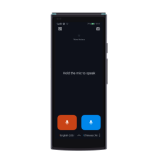
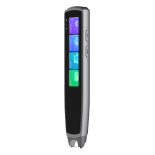





- How can I export the audio, transcription text, and subtitle video files from the iFLYTEK Smart Recorder Pro(502T)?


The operational steps are as follows:
1. Web Export
- Once the recording is complete, the system will automatically upload the audio/video files to the cloud 欧美日韩在线免费观看不卡视频. You can log in to your account at http://cloud. iflytekrecord. com/eu/login and select "Download".
- Additionally, you can open "My Files", select "Batch Operations" in the top right corner, and then choose files to upload them to the cloud storage. Text, audio, and video files are downloadable from the webpage cloud. iflytekrecord 国产成人精品久久亚洲高清不卡. com/eu.
2. USB Export
- Connect the recorder to a computer with a USB cable while it is in the boot state (Mac computers will need to have Android File Transfer or a similar Android file transfer tool installed).
- After connecting and unlocking the recorder, select "Allow" in the Request Access pop-up window to view the tranion content in the computer's "Devices and Drives" section under "Smart Recorder" files and export it to the computer.
3. File Export/Download Formats
- Audio: USB export → wav + aac; Web download → wav
- Documents: USB export → docx; Web download → docx
- Video: mp4
- Image: jpg
- Where can I set the transcription language on the iFLYTEK Smart Recorder Pro?
During the recording process, you can click the language option in the top right corner of the transcription to switch the language.
- I just received the iFLYTEK Smart Recorder Pro(502T). Will it activate automatically when I turn it on for the first time? Do I need to do anything?
Activation Guide – First-Time Setup
Activate your device by connecting to the internet and following the on-screen prompts:
1. Select your system language (options include Simplified Chinese, Traditional Chinese, English, French, Korean, and Hungarian) 亚洲国产精品欧美久久. .
2 欧美日韩在线免费观看不卡视频. Review and agree to the Privacy Policy and Service Agreement. .
3. Connect to a network.
4. Set a screen lock password (optional — you can skip this step) 国产成人精品久久亚洲高清不卡. .
5. Register using your email address (optional) 亚洲国产精品欧美久久. .
6. Log in to your account (optional).
7. Claim your cloud storage space (available after logging in) 欧美日韩在线免费观看不卡视频. .
Notes:
1. Before powering on, if you're using a 4G SIM card, insert it into the left SIM card tray using the provided ejector pin 国产成人精品久久亚洲高清不卡. .
2 亚洲国产精品欧美久久. After powering on, please follow the setup prompts to connect to the internet. We recommend using a Wi-Fi network. When both Wi-Fi and 4G networks are available, the device will prioritize Wi-Fi by default. .
3. Keep your system up to date by checking for updates while connected to the internet.
4. In the "Me" section, tap “Instructions and Feedback””to access manuals, guides, and FAQs. We recommend reviewing them to get familiar with your device.
- How to claim the cloud storage for the iFLYTEK Smart Recorder Pro(502T)?When you use iFLYTEK Smart Recorder Pro for the first time, a pop-up will automatically appear for claiming cloud storage, and you can claim it directly. If you skip this step, you can still access and claim the cloud storage benefits later via the "Me" section.
- "欧美日韩在线免费观看不卡视频" How to delete files from the iFLYTEK Smart Recorder Pro (502T)cloud storage?On the dedicated webpage: Asia: https://cloud.iflytekrecord.com/ap-en/login Europe: https://cloud.iflytekrecord.com/eu-en/login Log in to your iFLYTEK Smart Recorder Pro account, and you can select individual files to delete or choose multiple files for batch deletion.
- How do I choose a recording mode on the iFLYTEK Smart Recorder Pro (502T)? (国产成人精品久久亚洲高清不卡)
① Meeting Mode
Usage Tips:
Place the recorder with the screen facing upward and keep the microphones unobstructed. The 2+6 microphone array captures sound from multiple directions, and the noise reduction algorithm enhances voice clarity.
Scenes:
Ideal for multi-person meetings, business discussions, and similar scenarios.
② Speech Mode
Usage Tips:
Point the directional microphone at the top of the recorder toward the speaker to capture sound from the front while minimizing interference from the sides and rear. This ensures more accurate voice pickup during events.
Scenes:
Perfect for speeches, product launches, and similar occasions.
③ Lecture Mode
Usage Tips:
Aim the directional microphone on top of the recorder toward the lecturer to focus on the speaker’s voice and reduce background noise. This results in a clearer recording of the presentation.
Scenes:
Ideal for training sessions, academic conferences, classroom lectures, and similar settings.
④ Interview Mode
Usage Tips:
Direct the top-mounted directional microphones toward the interviewee and ensure they are unobstructed during recording. The noise reduction algorithm effectively reduces ambient noise, making voices clearer and more natural.
Scenes:
Best for face-to-face interviews, in-house interviews, street interviews, and similar situations.
- How long is the validity period of the iFLYTEK Smart Recorder Pro(502T)cloud storage, and what happens after it expires? (国产成人精品久久亚洲高清不卡)
The cloud storage is valid for 3 years. Paid subscription plans after expiration are currently unavailable and will be announced in the future.
- The real-time transcription accuracy on the iFLYTEK Smart Recorder Pro(502T)isn’t very good. What should I do? (亚洲国产精品欧美久久)
Troubleshooting Steps for Inaccurate Tranion:
1. Screen Protector: Ensure that the protective film is removed from the recorder. A screen protector can block the microphone and interfere with sound capture.
2. Recording Mode:Ensure you have selected the appropriate recording mode based on your environment. For more details, refer to "How to choose a recording mode."
3. Language Selection: Double-check that the correct language is selected for tranion.
4. Sound Adjustment: Adjust the microphone gain according to the recording environment. If the sound needs to be louder, set it to a higher level; if it needs to be softer, lower the setting.
- How to adjust: After starting the recording, click on the recording progress bar at the top of the screen. You can adjust the gain by selecting Low, Medium, or High on the right side and sliding up or down as needed.
5. Device Placement: Place the recorder face-up and horizontally on the desk to ensure proper sound capture. Position the device near the speakers for optimal performance.
6. Recording Environment & Distance: Consider the environment and distance between the recorder and speakers. Large rooms, multiple speakers, or too much distance from the source can affect tranion accuracy. For best results, we recommend using the recorder within a 10-meter radius of the speakers.
If the issue persists, please don’t hesitate to reach out for further assistance.